
Table of Contents
- 1. 1. The UK Smart TV Ecosystem: Why Tizen OS and webOS Block Android APKs
- 2. 2. Best IPTV Players for Samsung and LG TVs (2026 Rankings)
- 3. 3. Step-by-Step: How to Install IPTV on Samsung Smart TV and LG with IBO Player
- 4. 4. Step-by-Step: Setting Up IPTV Smarters Player Lite with Xtream Codes API
- 5. 5. Xtream Codes API vs Static M3U Playlists: Preventing Smart TV Crashes
- 6. 6. Hardware Benchmark: Native Smart TV Apps vs 4K Streaming Sticks
- 7. 7. Troubleshooting UK ISP Blocks, Buffer Loops, and Audio Sync on Smart TVs
- 8. 8. Frequently Asked Questions (FAQ)
- 9. 9. Conclusion & Getting Your Smart TV Free Trial
Learning how to install IPTV on Samsung Smart TV or LG webOS in the UK requires a different approach than Android. Because Samsung (Tizen OS) and LG (webOS) run closed platforms blocking Android APK sideloading and TiviMate, you must install an approved native player—like IBO Player or IPTV Smarters Player Lite—from your television's official app store and authenticate via an active provider's Xtream Codes API. Native apps deliver a tidy single-remote setup, whereas external 4K sticks unlock maximum decoding performance.
You cannot sideload Android APK files or install TiviMate onto a Samsung or LG television. Instead, install verified native clients such as IBO Player or Smarters Player Lite directly from the Samsung Smart Hub or LG Content Store. Always pair these players with an active provider's Xtream Codes API rather than static M3U playlist URLs to prevent low-RAM crashes and buffer loops during high-bitrate live sports broadcasts.
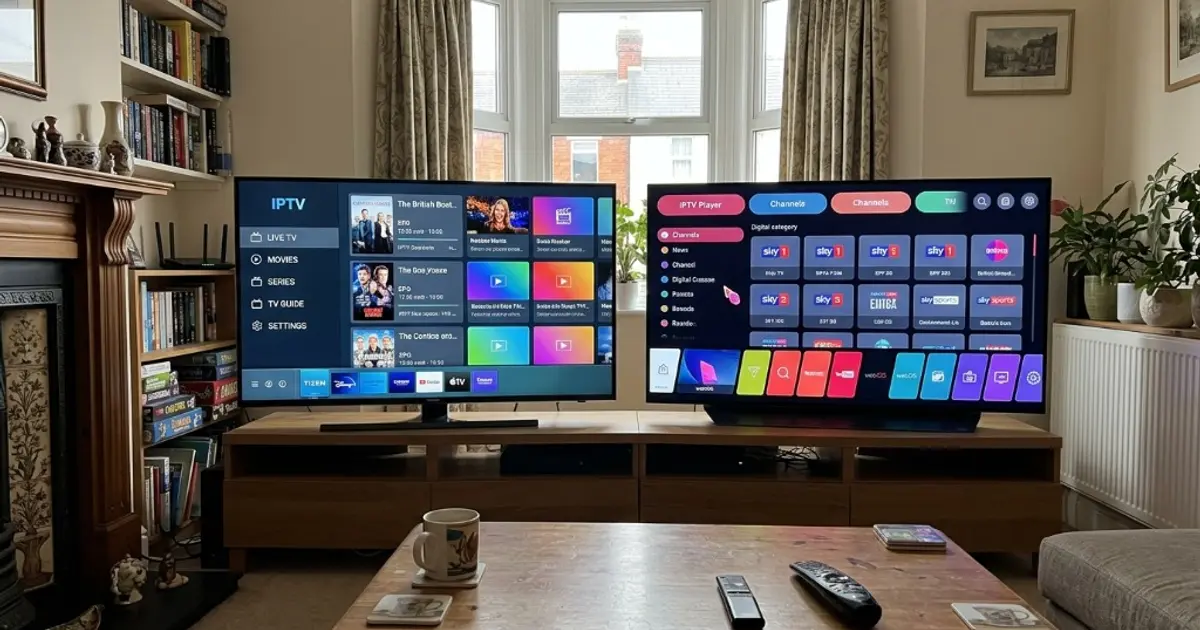
1. The UK Smart TV Ecosystem: Why Tizen OS and webOS Block Android APKs
According to consolidated television shipment datasets from Counterpoint Research and TechInsights, Samsung Tizen OS and LG webOS collectively power more than 46% of all primary living room television displays across the United Kingdom. For British households seeking to eliminate exorbitant satellite fees and bloated monthly contracts, these two South Korean manufacturing giants represent the hardware foundation of domestic home cinema. However, when subscribers attempt to configure an IPTV service, they frequently encounter confusion.
The core challenge stems from a fundamental divergence in operating system architecture. Popular media devices such as the Amazon Fire TV Stick, Google TV Chromecast, and Nvidia Shield run variants of Google's Android Open Source Project (AOSP). This allows them to execute compiled Android application packages (.apk files) via developer runtime environments, enabling applications like Downloader, TiviMate, and XCIPTV to be sideloaded effortlessly.
By contrast, Samsung and LG have built fortified, proprietary operating systems tailored exclusively to their custom display silicon:
- Samsung Tizen OS: A custom Linux-based operating system developed under the Linux Foundation and directed by Samsung Electronics. Tizen executes web applications encapsulated within HTML5, CSS, and modern JavaScript runtimes, alongside native packages compiled exclusively as
.wgtor.tpkcontainer formats. It possesses zero compatibility with Google's Dalvik or ART virtual machines. Attempting to download an Android APK through Samsung's built-in web browser merely saves an unexecutable binary payload that the operating system cannot parse. - LG webOS: Originally created by Palm and later re-engineered by LG Electronics, webOS is built on a Linux kernel optimized for LG's proprietary web runtime. Applications are packaged strictly as
.ipkfiles. WebOS executes web technologies inside sandboxed WebKit or Chromium shells, completely isolated from Android system calls.
Furthermore, regional UK regulatory compliance and intellectual property enforcement have prompted both Samsung Electronics UK and LG Electronics UK to implement rigorous security filters inside the Samsung Smart Hub and LG Content Store. Any application that advertises pre-loaded unlicensed streams or copyright-infringing links is immediately banned from the regional stores. To enjoy the best IPTV service for UK sports and channels on these panels, viewers must rely on legitimate, verified "shell" players—applications that provide only the playback engine and interface, requiring the subscriber to input their own lawful credentials.
2. Best IPTV Players for Samsung and LG TVs (2026 Rankings)
Because you cannot sideload APK files, discovering the best iptv player for samsung tizen tv and configuring iptv on lg smart tv uk setups requires evaluating the verified software catalog available in the official UK store repositories. The following four native players represent the gold standard in stability, user interface responsiveness, and Electronic Programme Guide (EPG) formatting for British living rooms.
All four applications reviewed below come 100% empty upon initial download. They do not supply, host, or link to any broadcast streams. To populate channel bouquets, electronic schedules, and on-demand libraries, you must link them to an active, high-bandwidth service. You can test your Smart TV with a VocoTV 24-hour free trial to verify flawless 50fps rendering before committing to a plan.
1. IBO Player / IBO Pro Player (Editor's Choice)
IBO Player is our top recommendation for UK owners of modern Samsung and LG televisions. Engineered specifically around the hardware constraints of Tizen and webOS, IBO Player avoids clunky onscreen keyboard typing. Instead, it generates a unique virtual MAC Address and Device Key on your television screen. You then navigate to an online management portal on your smartphone or PC to input your Xtream Codes API credentials, syncing your channel catalog instantaneously over encrypted cloud channels.
2. IPTV Smarters Pro / Smarters Player Lite (Best Direct Login)
Known across UK app stores as Smarters Player Lite on newer LG webOS sets and Samsung Tizen panels, this client delivers a familiar layout dividing Live TV, Movies, Series, and Catch-Up into distinct functional quadrants. It supports direct on-screen Xtream Codes API authentication, automatic EPG timeline refreshing, and customizable subtitle synchronization. In evaluating an ibo player vs iptv smarters smart tv setup, Smarters provides full on-screen independence without requiring an external web browser for credential entry.
3. SmartOne IPTV (Best Lightweight Alternative)
For television owners operating mid-range or entry-level models (such as Samsung TU-series or LG UQ-series) where menu navigation can feel sluggish, SmartOne IPTV provides an ultra-lean footprint. It strips away heavy graphical transitions in favor of rapid channel zapping (under 0.35 seconds) and multi-account switching. Like IBO Player, playlist provisioning is conducted remotely via an activation portal.
4. Nanomid Player & HotPlayer (Best Fallback Options)
If you own an older Samsung television (2017–2019 running Tizen 3.0/4.0) or an earlier LG panel running webOS 3.5, you may discover that IBO Player or Smarters Lite are not indexed in your regional app store. Nanomid Player and HotPlayer provide backwards-compatible fallback options. Nanomid features native protocol encryption and internal buffer-tuning sliders, making it remarkably resilient against legacy hardware frame-dropping.
| App Name | Compatible OS | Setup / Activation Method | Cost / License | EPG & Zapping Rating | Best For |
|---|---|---|---|---|---|
| IBO Player | Tizen (2018+) & webOS (4.0+) | MAC Address + Device Key (Web Portal) | 7-Day Free Trial, then ~£6–£8 One-Time | 9.8 / 10 (Instant) | Clean living room setup, zero remote typing |
| Smarters Player Lite | Tizen (2019+) & webOS (4.5+) | Direct On-Screen Xtream Codes API Input | 100% Free in UK App Store | 9.2 / 10 (Rapid) | Quadrant interface, zero activation fees |
| SmartOne IPTV | Tizen (All) & webOS (All) | MAC ID + Online Device Activation | 14-Day Free Trial, then ~£2.50/yr or £11 Lifetime | 9.0 / 10 (Fast) | Older or budget TVs with limited RAM |
| Nanomid Player | Tizen (2017+) & webOS (3.5+) | QR Code Scan / Web Portal Sync | 14-Day Free Trial, then ~£8.50 Lifetime | 8.7 / 10 (Stable) | Legacy Smart TVs, advanced stream buffering |
3. Step-by-Step: How to Install IPTV on Samsung Smart TV and LG with IBO Player
If you prefer an effortless setup that avoids typing long portal URLs and complex passwords using your TV remote's directional pad, knowing how to install IPTV on Samsung Smart TV and LG via IBO Player is the gold standard. Follow this five-step walkthrough to get your channel lineup operational in under four minutes.
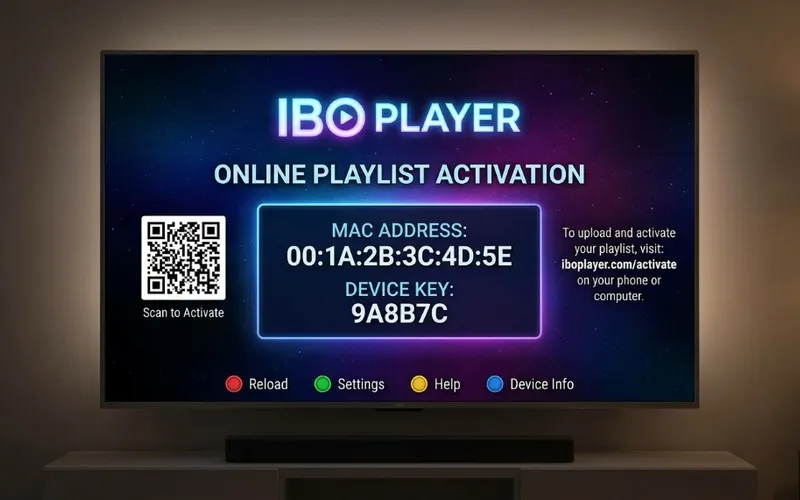
Download IBO Player from Your TV's Official App Store
Turn on your television and press the Home button on your remote. On Samsung, open the Apps tile inside the Smart Hub; on LG, open the LG Content Store or Apps dashboard. Search for IBO Player and select Install. Once downloaded, launch the application from your home bar.
Note Your Device MAC Address and Device Key
Upon launching IBO Player for the first time, the application will display a welcome screen (as shown in Figure 2). Take note of two critical identifiers: your Device MAC Address (e.g., 00:1A:2B:3C:4D:5E) and your alphanumeric Device Key (e.g., 9A8B7C). Keep this screen visible on your television.
Open the IBO Player Management Portal
On your smartphone, tablet, or PC, open a browser and navigate to https://iboplayer.com/device/login. Enter your television's Device MAC and Device Key exactly as shown on your TV screen, then click Login.
Add Your VocoTV Xtream Codes API Credentials
Once logged into the management portal, click + Add XC Playlist. Enter a reference name (e.g., VocoTV UK). Input the parameters provided in your subscription email: Server URL (e.g., http://domain.tv:8080), Username, and Password. Click Save Playlist.
Reload IBO Player on Your Television
Return to your television screen and press the Red button or select Reload. Within seconds, IBO Player will fetch your customized bouquets, sync 7 days of UK Electronic Programme Guide data, and display your live sports and entertainment lineup ready for viewing.
✅ IBO Player Advantages
- Zero remote-control typing for long passwords.
- Cloud-based playlist sync survives TV firmware updates.
- Extremely fast channel zapping times (<0.4 seconds).
- Flawless UK 50fps rendering on modern Tizen/webOS panels.
❌ IBO Player Drawbacks
- Requires small one-time app license after 7-day trial (~£6–£8).
- Cannot record live television to external USB flash memory.
- Does not support split-screen multi-view sports watching.
4. Step-by-Step: Setting Up IPTV Smarters Player Lite with Xtream Codes API
For viewers who want an entirely free player and prefer understanding how to connect xtream codes on smart tv directly without opening a secondary web browser, Smarters Player Lite is the UK's most popular native client. Here is how to configure it correctly on Samsung and LG panels.
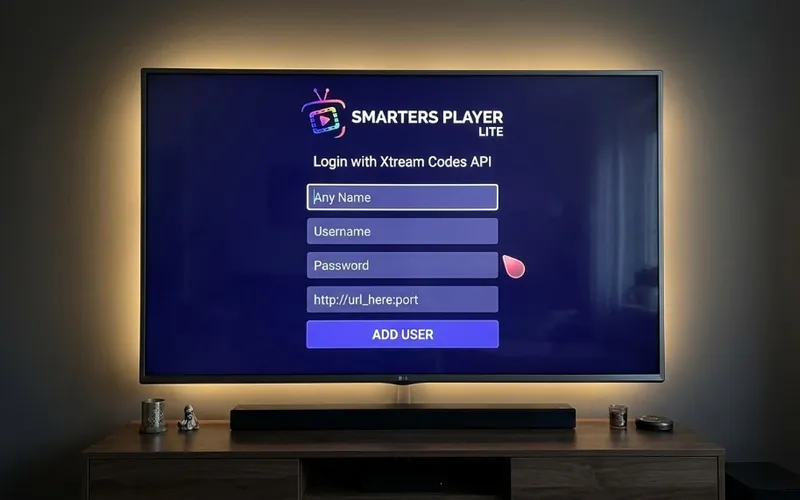
Locate and Install Smarters Player Lite in the UK Store
Access the Samsung Smart Hub or LG Content Store. In the search box, query Smarters Player Lite. (On certain UK models, it may appear as IPTV Smarters Pro or Smarters Pro). Download and install the software, then accept the standard license terms.
Select "Login with Xtream Codes API"
The application splash screen will offer two primary options: Load Your Playlist or File/URL or Login with Xtream Codes API. Always select Login with Xtream Codes API. Never attempt to load a static M3U file on a Smart TV, as this routinely crashes the television's memory controller.
Input Your Active Line Credentials
You will see four input boxes (as displayed in Figure 3):
• Any Name: Enter a recognizable label such as VocoTV UK.
• Username: Your assigned subscriber username.
• Password: Your assigned subscriber password (case-sensitive).
• Server URL / Portal: The exact domain and port provided in your welcome email (e.g., http://line.vocotv.com:8080).
Select Add User to connect to your service.
Calibrate Decoder & EPG Timeline Settings
Navigate to Settings (gear icon) in the top right corner. Select Stream Format and switch to MPEG-TS for superior UK live channel compatibility. Under Player Selection, ensure the default video decoder is set to Hardware Decoder. Finally, under Time Format, verify your timezone is locked to GMT / BST so your UK electronic guide syncs seamlessly with live match kickoffs.
Curious how the Smarters interface compares to dedicated Android players? Explore our comprehensive TiviMate Premium vs IPTV Smarters Pro benchmark to see why power users often transition to external streaming hardware.
5. Xtream Codes API vs Static M3U Playlists: Preventing Smart TV Crashes
A frequent complaint among British television owners is that their IPTV application freezes on launch, boots them back to the Smart Hub, or displays a black screen during channel switching. In more than 90% of cases, this stability failure is directly attributable to the connection protocol chosen: Static M3U Playlists vs Xtream Codes API.
The Memory Bottleneck of Static M3U Files
A static M3U playlist is essentially a single, colossal plaintext file containing tens of thousands of channel entries, stream tokens, stream categories, and electronic guide web links. An enterprise IPTV provider like VocoTV delivers over 20,000 live channels and 60,000+ movies and series. In raw M3U plaintext format, this file weighs between 25MB and 45MB.
While a modern PC or smartphone can parse a 45MB text string without issue, Smart TVs operate under stringent physical RAM boundaries. Samsung and LG panels typically possess between 1.5GB and 2.5GB of total DDR memory. The operating system shell, image processing algorithms (local dimming, HDR tone-mapping, AI upscaling), and audio decoding engines reserve up to 1.2GB permanently. This leaves less than 600MB of dynamic heap memory for third-party applications.
When an app like IBO Player or Smarters attempts to ingest a raw 45MB static M3U text file, the television's JavaScript garbage collector experiences severe thrashing. The app runs out of RAM, freezes the user interface, and Tizen or webOS forcibly terminates the process to prevent the television itself from rebooting.
Xtream Codes API operates on an intelligent client-server database architecture. When you log in, the player downloads only a lightweight JSON schema containing category headers (less than 200KB of memory). Streams, video URLs, and EPG schedules are fetched asynchronously on demand only when you click into a specific category or tune into a channel. This reduces RAM overhead by over 90%, ensuring lightning-fast zapping and zero memory crashes.
6. Hardware Benchmark: Native Smart TV Apps vs 4K Streaming Sticks
While native applications like IBO Player and Smarters Player Lite provide the cleanest possible aesthetic—allowing you to control your entire entertainment catalog with a single sleek Samsung OneRemote or LG Magic Remote—evaluating a smart tv native iptv app vs firestick reveals critical physical hardware compromises.
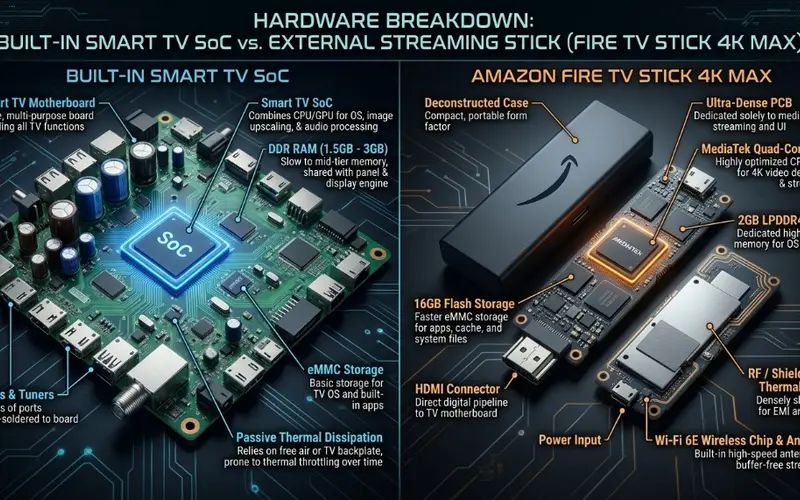
The Hidden Thermal and Network Limits of Smart TVs
Built-in System-on-a-Chip (SoC) boards inside Smart TVs (manufactured primarily by MediaTek, Novatek, or proprietary silicon teams) are engineered specifically for picture processing—colour accuracy, motion smoothing (MEMC), and contrast modulation. They are not high-throughput application processors. When forced to decode a 4K 50fps HEVC stream at 25 Mbps over several consecutive hours of Premier League coverage, three physical bottlenecks emerge:
- Thermal Throttling Behind Hot Panels: In modern ultra-thin OLED and Mini-LED displays, the mainboard is mounted directly against the metal backplate of a panel that dissipates significant heat (often reaching 45°C to 55°C). Lacking active fan cooling, the TV's processor automatically downclocks its CPU cores to prevent thermal damage, resulting in micro-stutter and audio desynchronization.
- The 100 Mbps Ethernet NIC Bottleneck: Almost every Samsung and LG television sold in the UK—including £2,500+ flagship OLEDs—features a legacy 100 Mbps Fast Ethernet network card rather than a modern Gigabit (1,000 Mbps) port. While 100 Mbps is theoretically sufficient for a single 4K stream, the TV's internal network buffer is minuscule, making it prone to packet overflow during ISP congestion windows.
- Zero Native VPN Capability: Neither Tizen nor webOS supports consumer VPN applications. If your UK broadband provider deploys automated traffic filtering during a major football match, you cannot simply activate a VPN app on your TV screen.
By contrast, connecting a dedicated streaming dongle such as the Amazon Fire TV Stick 4K Max (2nd Gen) or an Apple TV 4K bypasses the TV's internal limitations. For detailed step-by-step instructions on unlocking external streaming hardware, consult our complete Firestick IPTV setup guide.
| Benchmark Criteria | Native Smart TV (Tizen / webOS) | Amazon Fire TV Stick 4K Max | Advantage / Winner |
|---|---|---|---|
| Processor & Architecture | Low-power dual/quad SoC shared with display engine | Dedicated 2.0 GHz Quad-Core ARM Cortex-A55 | Fire TV Stick 4K Max |
| Available System RAM | 1.5GB – 2.5GB (Heavily reserved by OS shell) | 2.0GB LPDDR4 (Dedicated exclusively to apps) | Fire TV Stick 4K Max |
| App Availability & Sideloading | Walled garden: IBO Player, Smarters, SmartOne only | Full Android ecosystem: TiviMate, Smarters, Downloader | Fire TV Stick 4K Max |
| 50/60fps Sports Motion Handling | Vulnerable to dropped frames under panel heat | Hardware-accelerated AV1/HEVC decoding with zero drop | Fire TV Stick 4K Max |
| Native VPN Compatibility | None (Must configure at router level) | 1-Click Apps (ExpressVPN, NordVPN, Surfshark) | Fire TV Stick 4K Max |
| Remote Ergonomics & Cleanliness | 100% single remote (Samsung OneRemote / LG Magic) | Requires secondary remote (or HDMI-CEC syncing) | Native Smart TV |
| Portability & Travel | Fixed to your living room wall | Pocket-sized: plug into hotel or holiday TVs anywhere | Fire TV Stick 4K Max |
7. Troubleshooting UK ISP Blocks, Buffer Loops, and Audio Sync on Smart TVs
If you encounter buffering, frozen frames, or silent audio after learning how to install iptv on samsung smart tv, the root cause is rarely server failure. Instead, it typically stems from residential internet provider filters or uncalibrated audio decoders. For an exhaustive network breakdown, explore our guide to troubleshooting IPTV buffering and ISP throttling.
1. Overcoming UK ISP Content Filters & Match-Day Blocks
Under Section 97a of the UK Copyright, Designs and Patents Act, major UK residential Internet Service Providers—including BT, Virgin Media, Sky Broadband, TalkTalk, and EE—operate automated traffic filtering engines. During Saturday 3:00 PM Premier League fixtures and UEFA Champions League match windows, these filters automatically disrupt connection handshakes directed at known streaming server ports.
Furthermore, residential routers routinely ship with paternal security modules enabled by default:
• BT Broadband: BT CleanSafe and Web Protect
• Virgin Media: WebSafe (Child Safe and Virus Safe)
• Sky Broadband: Sky Broadband Shield
• EE Broadband: EE Content Lock
Because you cannot install a VPN application directly onto Tizen or webOS, apply these two proven bypass methods:
Method A: Disable ISP Security Portals — Log into your online broadband account (e.g., My Virgin Media or My BT), navigate to broadband security settings, and permanently turn off WebSafe, CleanSafe, or Broadband Shield.
Method B: Router-Level DNS Modification — Change your television's network DNS settings away from your ISP's default servers. On your Samsung TV (Settings > General > Network > Network Status > IP Settings) or LG TV (Settings > Network > Wi-Fi / Ethernet Connection > Advanced Settings > Edit), switch DNS from Automatic to Manual and enter Cloudflare DNS (1.1.1.1) or Google Public DNS (8.8.8.8). This bypasses local ISP domain redirection.
2. Resolving Audio Desynchronization and Silent Streams
If a live broadcast plays fluid video but outputs complete silence or audio that lags two seconds behind spoken dialogue, your Smart TV is struggling with audio codec passthrough. UK broadcast feeds frequently transmit in Dolby Digital Plus (E-AC-3) or multi-channel AAC.
- On Samsung Tizen: Navigate to Settings > Sound > Expert Settings. Locate Digital Output Audio Format and switch from Auto or Dolby Digital to PCM. This forces your TV's onboard audio processor to downmix the audio stream into uncompressed stereo before sending it to your television speakers or soundbar.
- On LG webOS: Navigate to Settings > All Settings > Sound > Sound Out. Select Advanced Settings and toggle Digital Sound Output from Auto / Bitstream to PCM. Additionally, ensure Match Screen and Sound is set to Bypass.
Ready to Test 50fps IPTV on Your Samsung or LG TV?
Activate your 24-hour test line with VocoTV. Experience over 20,000 live channels, pristine 4K sports with zero buffering, and full 7-day UK EPG integration on IBO Player or Smarters.
Claim Your 24-Hour Free Trial ⚡️8. Frequently Asked Questions (FAQ)
Here are clear, definitive answers to the most common queries surrounding Samsung and LG Smart TV IPTV installations in the UK:
Can you get TiviMate on a Samsung or LG Smart TV?
No. TiviMate is an Android-exclusive application compiled strictly for devices running Google Android TV or Amazon Fire OS. Samsung (Tizen OS) and LG (webOS) use proprietary Linux-based platforms that cannot execute Android APK files. If you want to use TiviMate, you must connect an external Android-powered device, such as an Amazon Fire TV Stick 4K Max or Google TV streamer, to your television's HDMI port.
Is IBO Player completely free on Samsung and LG TVs?
IBO Player is free to download from the Samsung Smart Hub and LG Content Store, and includes a full 7-day free trial with all features unlocked. After the 7-day trial period expires, continuing to use the player requires a small one-time activation fee (approximately £6 to £8) paid directly to the app developer via their website. Note that this fee licenses the software player only; it does not include television channels or streaming content.
Why does IPTV Smarters disappear from the Samsung App Store?
From time to time, Samsung Electronics UK conducts routine security audits and policy compliance reviews of media players hosted on the Samsung Smart Hub. During these audit cycles, applications like IPTV Smarters may be temporarily unindexed or rebranded (for example, reappearing under the name Smarters Player Lite). If Smarters is unavailable on your specific TV generation, install IBO Player or SmartOne IPTV as verified native alternatives.
Do I need a VPN for IPTV on a Samsung or LG Smart TV in the UK?
A VPN is not strictly mandatory if you use an enterprise streaming provider like VocoTV that incorporates proprietary anti-ISP-blocking routing. However, because major UK broadband providers (BT, Sky, Virgin Media) routinely throttle streaming traffic during Premier League football matches, a VPN is highly beneficial. Because Samsung and LG TVs cannot run native VPN apps, you must either configure a VPN at your home Wi-Fi router level or plug in an Amazon Firestick with 1-click VPN app support.
Why does live football buffer on my Smart TV but work fine on mobile?
This disparity usually comes down to three factors: physical hardware RAM, Wi-Fi antenna efficiency, and operating system overhead. Modern smartphones feature 6GB to 12GB of high-speed RAM and multi-gigabit Wi-Fi 6E/7 modems. In contrast, Smart TVs share only 1.5GB to 2GB of memory with heavy background picture-processing tasks, and their internal Wi-Fi antennas are shielded behind hot metal backplates. Furthermore, most Smart TVs cap their physical Ethernet ports at 100 Mbps, limiting emergency packet buffer depth during high-bitrate live 50fps sporting events.
9. Conclusion & Getting Your Smart TV Free Trial
Installing IPTV on a Samsung (Tizen OS) or LG (webOS) Smart TV in the United Kingdom boils down to an informed hardware and lifestyle decision. If your priority is a minimalist, clutter-free bedroom, kitchen, or secondary living room setup where everything operates seamlessly from a single Samsung OneRemote or LG Magic Remote, native players like IBO Player and Smarters Player Lite deliver an outstanding, responsive experience when connected via the Xtream Codes API.
However, if you are configuring a dedicated home cinema panel for high-stakes Saturday 3:00 PM Premier League football, Champions League nights, or 4K PPV boxing, investing in an external Amazon Fire TV Stick 4K Max is well worth the modest £45–£65 outlay. A dedicated streaming dongle eliminates the thermal throttling of TV processors, unlocks native 1-click VPN protection against aggressive UK ISP throttling, and grants you access to industry-leading Android players like TiviMate.
Whichever hardware path suits your household, you can verify your setup immediately without spending a penny. Explore our flexible VocoTV subscription plans, check our complete device installation tutorials, or request a risk-free VocoTV 24-hour free trial today to experience pristine 50fps 4K streaming on your television screen.
Related Topics & Keywords
About Marcus Sterling
Senior Streaming Tech Editor at VocoTV
Passionate streaming hardware specialist with extensive testing experience benchmarking IPTV CDNs, Firestick decoder profiles, and UK sports broadcast distribution protocols.
Have questions about this guide or setting up your device? Chat directly with a UK streaming advisor on WhatsApp.