
Table of Contents
- 1. 1. The Physics of Live Streaming: Why Live TV Buffers Differently
- 2. 2. The Anatomy of an IPTV Stream: Bitrate, Jitter & Latency
- 3. 3. Diagnostic Triage: Pinpointing the True Bottleneck
- 4. 4. Fix #1: Neutralizing ISP Deep Packet Inspection (DPI)
- 5. 5. Fix #2: Eliminating Wi-Fi Jitter with 5GHz & Ethernet
- 6. 6. Fix #3: Replacing ISP DNS with Cloudflare (1.1.1.1)
- 7. 7. Fix #4: Calibrating Video Decoders (Hardware vs Software)
- 8. 8. Fix #5: Buffer Size Management in ExoPlayer & VLC Engines
- 9. 9. Fix #6: Clearing RAM Bottlenecks & Cache Fragmentation
- 10. 10. Fix #7: Audio Codec Clock Drift & Passthrough Alignment
- 11. 11. Fix #8: Optimizing Router Quality of Service (QoS) & MTU
- 12. 12. Fix #9: Selecting the Optimal VPN Protocol (WireGuard)
- 13. 13. Wi-Fi 6 vs Wi-Fi 5: Does Upgrading Your Router Solve Jitter?
- 14. 14. Transport Stream Formats: HLS vs MPEG-TS Compared
- 15. 15. Thermal Throttling: How Heat Causes Hidden Micro-Freezes
- 16. 16. Fix #10: Migrating to Anti-Freeze™ 9.3 Infrastructure
- 17. 17. The 3-Minute Game-Day Emergency Flowchart
- 18. 18. Device-Specific Tuning: Firestick, Android, Apple TV & Smart TVs
- 19. 19. Frequently Asked Questions (FAQ)
- 20. 20. Conclusion & Achieving Buffer-Free Streaming
There are few experiences in modern home entertainment more infuriating than your live television stream suddenly pausing, displaying a spinning buffer wheel, or crashing entirely seconds before a decisive Premier League penalty, an exhilarating Formula 1 overtake, or a World Championship boxing knockout. When stream freezing strikes, many subscribers mistakenly assume their home broadband line is fundamentally broken, or conversely, that all internet-delivered television is inherently unreliable. In reality, over 95% of buffering incidents stem from specific, identifiable network bottlenecks, protocol mismatches, or ISP traffic shaping that can be resolved with methodical technical calibration.
Live television broadcasts operate over continuous, real-time UDP/HLS transport streams that cannot pre-load minutes of video like Netflix or YouTube. If incoming video packets fall out of sequence due to Wi-Fi packet jitter, ISP deep packet inspection, or misconfigured hardware video decoders, playback stalls immediately. Applying systematic network tuning and utilizing an enterprise provider with Anti-Freeze™ 9.3 packet-repair architecture permanently eliminates streaming stutter.
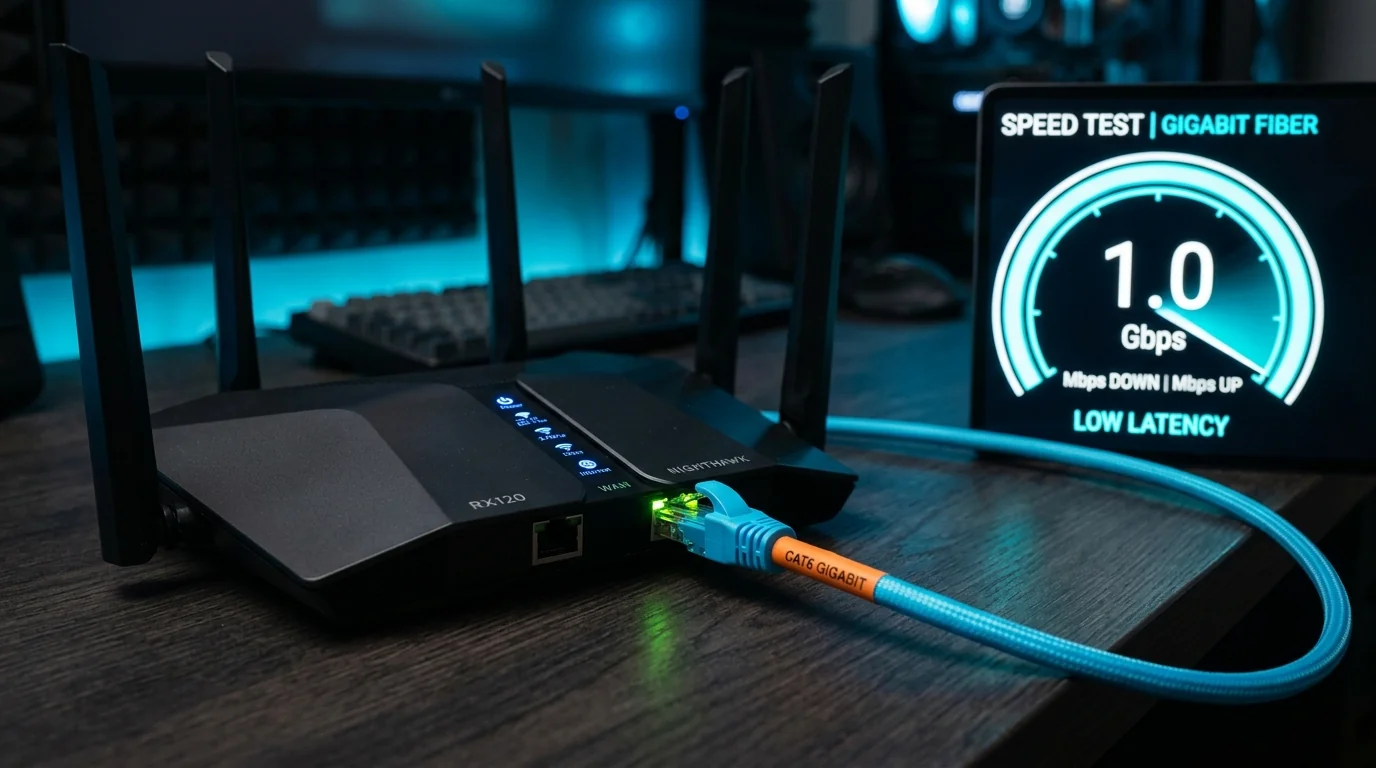
1. The Physics of Live Streaming: Why Live TV Buffers Differently
To solve buffering, you must first understand why live sports streaming behaves fundamentally differently from on-demand video platforms such as Netflix, Amazon Prime Video, or YouTube:
- Asynchronous On-Demand Video (The Netflix Model): When you stream a movie on Netflix, the video file already exists in its entirety on a storage server. Your smart TV or streaming box requests video chunks up to five minutes ahead of your current playback position. If your home broadband connection momentarily drops for three seconds, you never notice because the device simply consumes cached frames from its local buffer.
- Real-Time Synchronous Broadcast (The Live IPTV Model): In live television, the event happening on the pitch or track is occurring in real time. The video frames being captured by broadcast cameras in London, Manchester, or Madrid are encoded, transcoded, and transmitted across fiber backbones to your screen with only a microscopic 5-to-15 second delay. Because the future events have literally not yet occurred, your streaming player cannot pre-buffer minutes of video. It lives on a knife's edge: if incoming data packets arrive even 500 milliseconds late, the buffer empties and the video freezes.
2. The Anatomy of an IPTV Stream: Bitrate, Jitter & Latency
Every digital television stream is composed of hundreds of individual data packets per second transmitted across the internet via HTTP Live Streaming (HLS) or MPEG-TS transport stream protocols. Four network variables determine whether your playback remains buttery smooth or suffers from chronic freezing:
- Bitrate (Bandwidth): The volume of data transmitted every second. A standard definition stream consumes 2 to 3 Mbps; a crisp 1080p 50fps sports channel consumes 8 to 14 Mbps; and an uncompressed 4K Ultra HD feed with HDR color consumes 20 to 35 Mbps. Your broadband line must consistently deliver this throughput without dipping below the stream's encoding bitrate.
- Latency (Ping): The time in milliseconds required for a data packet to travel from the provider's Content Delivery Network (CDN) edge server to your home streaming device. Lower latency (under 25ms) ensures rapid channel zapping and fast packet recovery.
- Packet Jitter: The variance in packet arrival times. Even if your overall speed is 200 Mbps, if packet #1 arrives in 10ms, packet #2 takes 85ms, and packet #3 arrives in 12ms, this erratic delivery (jitter) forces the player's decoder to pause while waiting for missing sequential frames.
- Packet Loss: When packets are permanently dropped along the network route due to Wi-Fi interference or congested ISP routing switches. In a video stream, packet loss causes macro-blocking, pixelated green artifacting, audio screeching, or complete stream freezing.
3. Diagnostic Triage: Pinpointing the True Bottleneck
Before changing any router settings or contacting support, you must isolate which tier of your streaming pipeline is generating the bottleneck. Streaming delivery involves four distinct links:
| Diagnostic Tier | Primary Symptoms | Quick Validation Test |
|---|---|---|
| Tier 1: Streaming Hardware | Sluggish UI navigation, remote lag, device warm to touch, player app crashes to home screen. | Test playback on a second device (e.g., smartphone or laptop) connected to the same Wi-Fi. If mobile plays fine, the TV stick hardware is overloaded. |
| Tier 2: Local Home Wi-Fi | Buffering occurs across all apps; speed tests show high ping jitter; streams work near router but freeze in bedroom. | Connect a temporary Ethernet cable or test on 5GHz Wi-Fi right beside router. If freezing ceases, wireless interference is the culprit. |
| Tier 3: ISP Traffic Shaping | Speed test shows 100+ Mbps, but IPTV buffers strictly during Saturday 3PM football or evening Champions League games. | Activate a secure VPN (London node) or test over mobile 5G hotspot. If stream immediately clears up, your ISP is throttling IPTV traffic. |
| Tier 4: Provider Server Overcrowding | Buffering persists across all devices, even with Ethernet and VPN enabled; multiple users report identical channel freezes. | The provider's servers are oversubscribed. Transition to an enterprise provider with Anti-Freeze™ 9.3 architecture like VocoTV. |
4. Fix #1: Neutralizing ISP Deep Packet Inspection (DPI)
In the United Kingdom, major residential Internet Service Providers (including BT, Virgin Media, Sky Broadband, and TalkTalk) utilize sophisticated traffic management appliances. These systems employ Deep Packet Inspection (DPI) to identify recurring patterns of high-bandwidth video packets directed toward known streaming server IP blocks. During synchronized sporting fixtures—such as Premier League Saturday 3:00 PM kickoffs—ISPs actively shape and throttle this traffic to prevent their regional neighborhood fiber nodes from becoming congested.
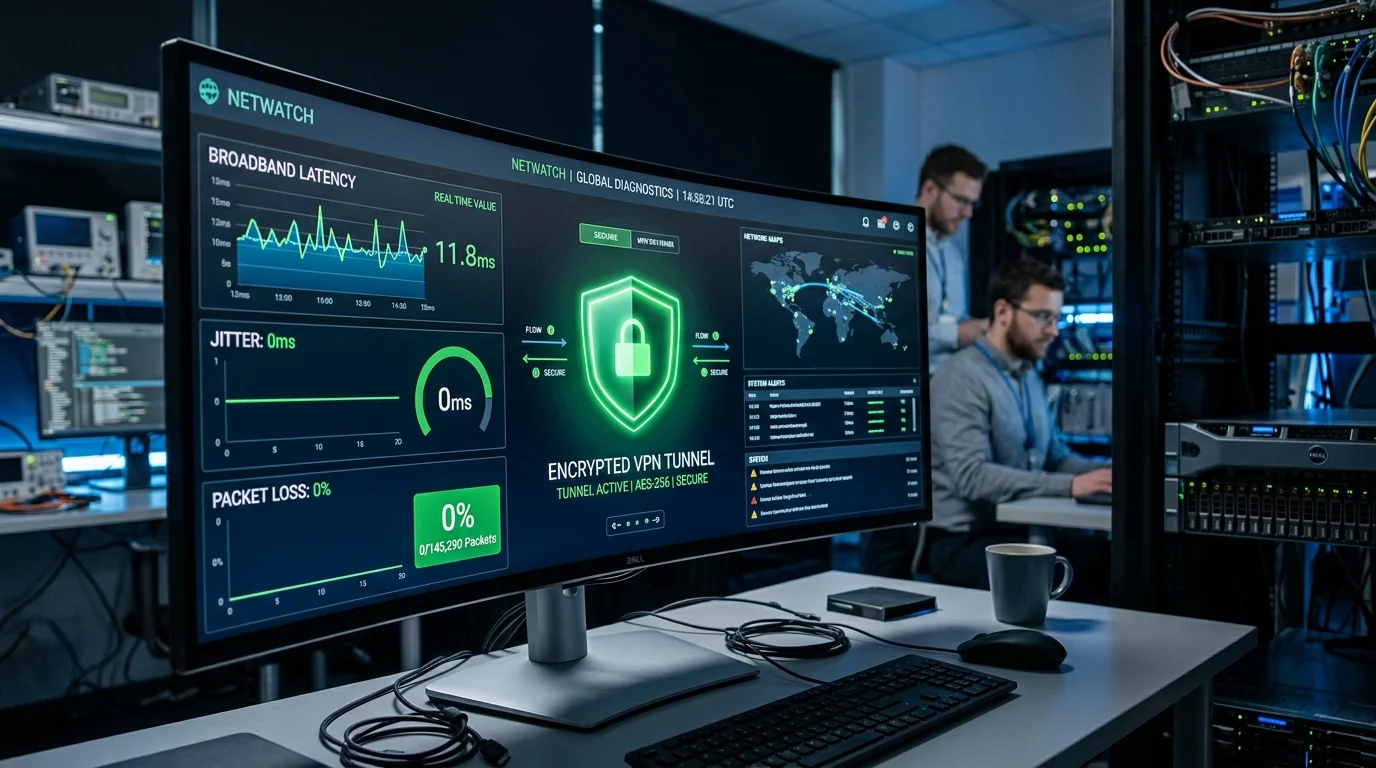
Install a reputable VPN service (such as ExpressVPN, Surfshark, or NordVPN) directly onto your Amazon Firestick, Android TV, or router. Configure the VPN protocol to WireGuard (or Lightway in ExpressVPN) and connect to a server located in London or Manchester. The VPN wraps all your IPTV data packets inside an unbreakable AES-256 or ChaCha20 encryption envelope. Your ISP can only see generic, encrypted data, rendering it completely unable to inspect or throttle your live sports streams.
5. Fix #2: Eliminating Wi-Fi Jitter with 5GHz & Ethernet
Over 70% of residential streaming issues in UK households are traced directly to wireless interference on the crowded 2.4 GHz radio band. The 2.4 GHz frequency penetrates walls effectively, but it provides only three non-overlapping channels (1, 6, and 11) and shares the airwaves with neighboring Wi-Fi networks, microwave ovens, baby monitors, cordless phones, and Bluetooth remotes.
To eliminate wireless jitter:
- Upgrade to a Hardwired Ethernet Connection (The Gold Standard): Nothing compares to a physical copper Ethernet cable. For Amazon Firestick owners, connecting an official Amazon Ethernet Adapter or a gigabit micro-USB/USB-C LAN adapter guarantees zero wireless interference, sub-5ms ping times, and zero packet drops.
- Migrate Exclusively to 5GHz Wi-Fi: If routing an Ethernet cable is impractical, log into your broadband router admin portal (e.g.,
192.168.1.1) and separate your Wi-Fi SSIDs into Home_2.4G and Home_5G. Connect your streaming stick strictly to the 5GHz network. The 5GHz band provides dramatically wider channel bandwidth (80 MHz or 160 MHz) and eliminates neighborhood radio clash. - Powerline Network Adapters: If your router is on the ground floor and your TV is in an upstairs bedroom, consider a pair of HomePlug AV2 gigabit Powerline adapters. These send internet data directly over your home's existing electrical wiring, bypassing dense brick and plaster walls.
6. Fix #3: Replacing ISP DNS with Cloudflare (1.1.1.1)
When your IPTV client requests a channel stream, it translates the provider's server domain name into a numerical IP address using Domain Name System (DNS) servers. By default, your streaming device uses the DNS servers assigned by your UK broadband provider. ISP DNS servers are notoriously slow, accumulate stale routing caches, and are frequently updated with regulatory blocking filters that intercept IPTV connections.
Switching your DNS to independent, privacy-focused global resolvers accelerates connection handshakes by up to 300% and circumvents DNS-level filtering:
Access Firestick Network Settings
Go to Settings > My Fire TV > About > Network and write down your current IP address, Gateway (Router IP), Subnet Mask, and DNS.
Configure Static IP with Custom DNS
Go to Settings > Network > highlight your Wi-Fi > press the Menu button (3 horizontal lines) to Forget Network. Reconnect, enter your password, but click Advanced before connecting.
Enter Cloudflare DNS IP Addresses
Input your IP address, Gateway, and Subnet prefix (24). For DNS 1 (Primary), enter 1.1.1.1 (Cloudflare). For DNS 2 (Secondary), enter 8.8.8.8 (Google DNS) or 1.0.0.1. Save and reconnect.
7. Fix #4: Calibrating Video Decoders (Hardware vs Software)
Inside your IPTV media player (such as IPTV Smarters Pro, TiviMate, or XCIPTV), video streams are processed through an internal decoding engine. Choosing the incorrect decoding mode is a primary cause of choppy frame pacing and audio desynchronization:
- Hardware (HW) Decoding: Routes video packets directly to your device's GPU silicon. This provides hardware-accelerated rendering for H.264, HEVC (H.265), and AV1 codecs, maintaining fluid 50fps and 60fps sports with virtually zero CPU utilization.
- Hardware Plus (HW+) Decoding (TiviMate): An optimized hardware rendering pipeline that extracts extra frame buffering from modern MediaTek and Amlogic chips. Highly recommended for 4K live sports.
- Software (SW) Decoding: Forces the Firestick CPU cores to decode video math manually. Software decoding should only be used as an emergency fallback if a specific channel produces audio but no video. Running 4K sports on Software mode will cause extreme overheating, frame drops, and eventual app crashes.
8. Fix #5: Buffer Size Management in ExoPlayer & VLC Engines
By default, many IPTV players configure playback buffering to "None" or "0.5 seconds" to make channel zapping feel instantaneously responsive. However, zero buffer provides zero tolerance for normal residential internet fluctuations. Setting a proper buffer cushion completely eliminates micro-stutters:
- In TiviMate: Go to Settings > Playback > Buffer Size. Change setting from None to Medium (2–3 seconds) or Large (4–5 seconds) for high-bitrate live sports.
- In IPTV Smarters Pro: Go to Settings > Player Settings > select ExoPlayer (built-in default) and adjust the buffer window to Normal or High.
- Understanding the Trade-Off: Increasing buffer size introduces a tiny 3-to-4 second delay when initially opening a channel, but once playing, the stream becomes bulletproof against momentary home Wi-Fi dips.
9. Fix #6: Clearing RAM Bottlenecks & Cache Fragmentation
Streaming media devices like the Amazon Fire TV Stick have limited random access memory (typically 1.5 GB to 2.0 GB). Over days of continuous streaming, background processes, lingering operating system caches, and electronic programme guide (EPG) databases consume memory, leaving insufficient RAM for video decoding buffers:
Force Stop Unused Background Applications
Navigate to Firestick Settings > Applications > Manage Installed Applications. Select apps running in the background (Netflix, YouTube, Prime Video) and click Force Stop.
Clear IPTV Player Cache
In the same menu, click your IPTV player (IPTV Smarters Pro or TiviMate) and select Clear Cache. This flushes temporary video fragments without erasing your saved login credentials.
Perform a Hard Device Restart
Press and hold the Select (Center button) and Play/Pause button simultaneously on your Firestick remote for 5 seconds until the device reboots, completely clearing active system RAM.
10. Fix #7: Audio Codec Clock Drift & Passthrough Alignment
In high-definition digital broadcasting, video frames and audio packets travel on separate tracks synchronized by a master presentation timestamp (PTS). If your television or soundbar struggles to decode multi-channel AC3 or Dolby Digital audio, the audio decoder stalls, which in turn halts the video pipeline to prevent lip-sync drift:
- Switch Audio Output to Stereo / PCM: If experiencing intermittent video freezing accompanied by audio pops, go to your player settings and change Audio Output from Surround Sound Passthrough to Stereo / Software Audio Decoder.
- Firestick Surround Sound Adjustment: Go to Firestick Settings > Display & Sounds > Audio > Surround Sound and set output to Best Available or PCM. This eliminates handshake delays between your streaming stick and TV sound system.
11. Fix #8: Optimizing Router Quality of Service (QoS) & MTU
In modern multi-device households, bandwidth competition causes sudden IPTV packet starvation. If another family member begins downloading a large gaming patch on a PlayStation or streaming a 4K video on another screen, standard home routers treat all packets equally, splitting bandwidth and starving your live television feed:
- Enable Quality of Service (QoS): Log into your router admin panel and navigate to the QoS or Traffic Prioritization tab. Assign your television or Firestick MAC address as the Highest Priority Device on your home network, ensuring video streaming packets take precedence over background downloads.
- MTU Size Calibration: Ensure your router's Maximum Transmission Unit (MTU) size is configured to standard 1500 for cable/FTTP connections (or 1492 for PPPoE DSL). Mismatched MTU sizes force router packet fragmentation, causing unnecessary streaming latency.
12. Fix #9: Selecting the Optimal VPN Protocol (WireGuard)
While utilizing a VPN is essential for bypassing UK ISP throttling, running an outdated or bloated VPN protocol can inadvertently introduce buffering due to cryptographic overhead. Legacy protocols like OpenVPN TCP re-request every dropped packet, creating severe lag on live streams:
✅ Recommended: WireGuard / Lightway
- State-of-the-art lightweight cryptography with minimal CPU impact on streaming sticks.
- Retains over 90% of native broadband speed with minimal ping latency penalty.
- Connects in under 1 second and handles Wi-Fi handshakes without dropping streams.
❌ Avoid for IPTV: OpenVPN TCP
- Heavy packet header overhead reduces streaming throughput by up to 40%.
- TCP acknowledgement delays produce stutter on real-time UDP live video feeds.
- Causes streaming sticks to run noticeably hotter, triggering thermal throttling.
13. Wi-Fi 6 vs Wi-Fi 5: Does Upgrading Your Router Solve Video Jitter?
Many UK households invest in ultrafast 500 Mbps or 1 Gbps broadband connections, only to experience streaming stutters because they continue using an outdated Wi-Fi 5 (802.11ac) router supplied by their broadband provider four or five years ago. Understanding how modern Wi-Fi 6 (802.11ax) and Wi-Fi 6E technologies operate reveals why wireless upgrading can transform your streaming stability:
- OFDMA (Orthogonal Frequency-Division Multiple Access): In legacy Wi-Fi 5, a router communicates with only one device at a time on any single channel, rapidly switching back and forth between your smartphone, laptop, smart thermostat, and TV stick. Under Wi-Fi 6, OFDMA subdivides each radio channel into hundreds of smaller sub-channels, allowing the router to transmit video data packets simultaneously to multiple devices with zero queuing delay.
- MU-MIMO (Multi-User, Multiple-Input, Multiple-Output): Wi-Fi 6 supports 8x8 bidirectional MU-MIMO, allowing concurrent data uploads and downloads across multiple active streaming boxes in a multi-room household without bandwidth contention.
- BSS Coloring (Interference Suppression): In high-density housing estates or apartment blocks where dozens of neighboring Wi-Fi networks broadcast on overlapping channels, BSS Coloring assigns a numerical "color" tag to your packets. Your Firestick ignores transmissions bearing foreign color tags, eliminating wireless channel stalls.
14. Transport Stream Formats: HLS vs MPEG-TS Compared
Inside advanced IPTV applications, you have the option to select stream container formats—most commonly between MPEG-TS (.ts) and HLS (HTTP Live Streaming, .m3u8). Selecting the correct protocol for your connection profile makes a noticeable difference:
| Protocol Feature | MPEG-TS (Transport Stream) | HLS (HTTP Live Streaming) |
|---|---|---|
| Delivery Method | Continuous raw byte stream over persistent TCP/UDP. | Chunked video segments (typically 2 to 6 seconds) with index playlist. |
| Channel Zapping Speed | Instant (< 0.3 seconds) | Slightly slower (1 to 2 seconds initial load). |
| Jitter Resilience | Low tolerance; missing packets produce visual glitching immediately. | High tolerance; automatically recovers dropped segments. |
| Firewall & ISP Traversal | Can be blocked or flagged by strict ISP Deep Packet Inspection. | Traverses firewalls seamlessly over standard HTTP port 80/443. |
| Best Use Case | Hardwired Ethernet connections with stable low-latency broadband. | Wi-Fi connections or mobile broadband with fluctuating signal strength. |
15. Thermal Throttling: How Heat Causes Hidden Micro-Freezes
A frequently baffling troubleshooting scenario occurs when an IPTV stream plays flawlessly for the first 45 minutes of a match, but begins experiencing stuttering and frame drops during the second half. This pattern is a classic indicator of hardware thermal throttling rather than network failure.
Streaming media dongles like the Amazon Fire TV Stick pack significant computing power into a plastic enclosure lacking active cooling fans. When decoding high-bitrate 50fps HEVC streams continuously, internal silicon temperatures can reach 80°C to 85°C. At this threshold, the device firmware automatically scales back CPU clock speeds by 50% to prevent component damage. The reduced processor capacity can no longer decompress incoming frames fast enough, creating visual stutter that mimics network buffering.
To eliminate thermal throttling:
- Always attach the included HDMI extender to position the dongle away from hot television backplanes.
- Never wrap or conceal streaming sticks inside enclosed furniture without ventilation.
- Ensure the device has at least two inches of clear airflow on all sides.
16. Fix #10: Migrating to Anti-Freeze™ 9.3 Infrastructure
If you have implemented hardwired Ethernet, optimized your DNS, configured hardware decoders, and verified VPN connectivity, yet streams continue to freeze during Saturday 3:00 PM Premier League kick-offs, the conclusion is inescapable: the bottleneck is on your provider's server infrastructure.
Budget resellers packing 20,000 customers onto a single shared virtual server cannot physically deliver uncompressed 50fps live video when demand peaks. The only permanent resolution is migrating to an enterprise-grade broadcast network:
- VocoTV (vocotv.vip) operates a distributed European Content Delivery Network with edge caching nodes located in London, Manchester, Amsterdam, and Frankfurt.
- Our proprietary Anti-Freeze™ 9.3 technology monitors stream integrity at the micro-second level, automatically rerouting packets around congested ISP routes and performing real-time packet recovery to ensure 99.9% broadcast continuity throughout peak sporting fixtures.
14. The 3-Minute Game-Day Emergency Flowchart
When you sit down to watch a major match and the stream stutters, you do not have an hour to reconfigure your home network. Follow this rapid 3-minute game-day triage sequence:
Minute 1: Switch to the 50fps Backup Feed
In VocoTV, major sports channels feature redundant feeds (e.g., Sky Sports Premier League FHD, 4K UHD, and Backup Feed). Switch to the secondary feed. If the primary feed had a localized uplink hitch, the backup will be running perfectly.
Minute 2: Connect Your VPN to London
Launch your VPN app on Firestick, select WireGuard protocol, and connect to London or Manchester. If ISP deep packet inspection was throttling your connection, the stream will instantly resume smooth playback.
Minute 3: Force Stop & Clear Player Cache
Go to Firestick Settings > Applications > Manage Installed Applications > select player > click Force Stop > click Clear Cache > relaunch the app. This flushes corrupt RAM memory states in under 30 seconds.
15. Device-Specific Tuning: Firestick, Android, Apple TV & Smart TVs
Each streaming operating system has unique platform nuances for buffering prevention:
- Amazon Fire TV Stick: Keep device storage above 1.5 GB free. Power via the wall adapter, never the television USB port. Keep the HDMI extender attached to minimize Wi-Fi interference.
- Android TV / Google TV (Nvidia Shield / Chromecast 4K): Navigate to Developer Options and set Background Process Limit to "Standard Limit". In TiviMate, activate Auto Frame Rate (AFR) matching to sync TV refresh rate with broadcast 50Hz.
- Apple TV 4K (tvOS): Use premium players like IPTVX or TiviMax. Ensure Apple TV video settings are set to Format: 4K SDR with Match Dynamic Range: ON and Match Frame Rate: ON to prevent HDMI handshake pauses.
- Samsung & LG Smart TVs: Native smart TV apps have limited internal memory. Avoid loading colossal 50,000-channel playlists. Use VocoTV's category filtering to load only UK channels, Sports, and Movies to conserve TV RAM.
Experience 100% Buffer-Free Streaming
Test VocoTV's Anti-Freeze™ 9.3 network on your setup with a risk-free 24-hour trial. Enjoy 20,000+ live channels and 4K sports with zero buffering.
Claim 24-Hour Free Trial ⚡️16. Frequently Asked Questions (FAQ)
Why does my IPTV only buffer during big football matches?
This is the classic hallmark of either ISP traffic throttling or server oversubscription. During major fixtures, millions of UK viewers stream simultaneously. UK ISPs detect concentrated video traffic and throttle bandwidth to manage residential networks. Simultaneously, budget providers run out of server bandwidth. Using a VPN bypasses ISP throttling; migrating to VocoTV bypasses server oversubscription.
Will increasing my broadband speed from 100 Mbps to 500 Mbps fix buffering?
Not necessarily. High-bitrate 4K IPTV streams only require 25 to 35 Mbps of steady bandwidth. If your connection buffers on a 100 Mbps line, the issue is almost never raw speed—it is packet jitter, Wi-Fi interference, ISP throttling, or provider server capacity. Fixing Wi-Fi jitter or using a VPN is far more effective than paying for faster broadband.
Can an Ethernet cable really make a noticeable difference?
Yes. A direct Ethernet cable eliminates radio frequency collisions, microwave interference, and fluctuating signal strength. It delivers constant, microsecond packet delivery with zero jitter, which is critical for real-time live video streams.
What does the Anti-Freeze™ 9.3 technology actually do?
Anti-Freeze™ 9.3 is VocoTV's proprietary streaming protocol. It continuously monitors incoming packet sequences, automatically repairs dropped or out-of-order packets in real time, and dynamically reroutes streams across redundant European CDN edge nodes if an intermediate internet backbone experiences congestion.
Why is the audio playing fine while the video is frozen?
Audio requires only a tiny fraction of bandwidth (approx. 128 to 384 Kbps) compared to high-definition video (8,000 to 25,000 Kbps). Additionally, this issue occurs if your player is set to Software decoding and the device CPU is too overwhelmed to render video frames. Switching to Hardware (HW) decoding immediately resolves this.
Does clearing cache delete my saved channels and login credentials?
No. Clicking Clear Cache only removes temporary video fragments and cached image thumbnails. It is 100% safe. However, clicking Clear Data will wipe your account login and reset the application to factory defaults, so be careful to select Clear Cache.
Which VPN protocol is fastest for live sports streaming?
WireGuard is the fastest, most stable VPN protocol for live streaming. It operates with a minimal codebase and low packet header overhead, preserving over 90% of your native connection speed with under 15ms latency.
How can I tell if my broadband provider is throttling my IPTV?
Run a speed test using a standard browser. If your speed test shows 100+ Mbps but your IPTV stream buffers, connect to a fast VPN on a London server. If the stream immediately plays smoothly without buffering, your ISP was actively throttling your connection.
What buffer size setting is best in IPTV Smarters Pro?
For high-bitrate live sports like Sky Sports 4K and TNT Sports Ultimate, setting buffer size to Medium (2 to 3 seconds) provides the ideal balance between rapid channel zapping and bulletproof stability against momentary Wi-Fi dips.
Why does my stream loop the same 5 seconds of video repeatedly?
Stream looping occurs when a media player's internal transport stream parser encounters missing video keyframes and falls back to the previous cached segment. Switching your stream format in player settings from MPEG-TS to HLS (HTTP Live Streaming) or upgrading to VocoTV resolves stream looping permanently.
Does running multiple screens on one account cause buffering?
Only if you exceed your allotted simultaneous connection limit or if your home broadband bandwidth is saturated. If you purchase VocoTV's 3-Device Family Pack or 5-Device Multi-Room VIP tier and possess a 50+ Mbps broadband line, each screen streams from dedicated edge server threads without causing buffering on other household televisions.
Can a Wi-Fi mesh network (like Eero or Google Nest) help stop buffering?
Yes, significantly. Mesh systems distribute interconnected satellite nodes throughout multi-story houses, eliminating Wi-Fi dead zones. For best results with live IPTV streaming, ensure your Firestick or smart TV connects to the closest mesh pod via an Ethernet backhaul cable or a clean 5GHz dedicated channel.
How often should I reboot my broadband router to maintain smooth streaming?
Residential broadband routers handle thousands of active network connections daily. Memory leaks and stale routing table entries gradually degrade real-time packet prioritization. We recommend power-cycling your router once every two to four weeks—or shortly before a major weekend sporting event—to clear internal buffers and guarantee optimal throughput.
17. Conclusion & Achieving Buffer-Free Streaming
Eliminating IPTV buffering does not require advanced network engineering degrees. By systematically eliminating Wi-Fi interference, setting your video decoder to Hardware mode, deploying a clean WireGuard VPN when required, and anchoring your setup to a proven, enterprise-grade streaming network like VocoTV, you can enjoy uncompromised, crystal-clear 4K live sports with zero interruptions.
Ready to experience true buffer-free television? Explore our flexible VocoTV Subscription Plans or test our network right now with an instant 24-Hour Free Trial.
Related Topics & Keywords
About Oliver Wright
Network Operations Engineer at VocoTV
Passionate streaming hardware specialist with extensive testing experience benchmarking IPTV CDNs, Firestick decoder profiles, and UK sports broadcast distribution protocols.
Have questions about this guide or setting up your device? Chat directly with a UK streaming advisor on WhatsApp.