
Table of Contents
- 1. 1. Why the Amazon Firestick Dominates UK IPTV
- 2. 2. Firestick Model Comparison & Hardware Specs
- 3. 3. Pre-Installation Checklist & Environment Prep
- 4. 4. Revealing Hidden Developer Options on Fire OS
- 5. 5. Installing and Authorizing the Downloader App
- 6. 6. Downloading & Installing IPTV Smarters Pro
- 7. 7. Sideloading TiviMate & Alternative Players
- 8. 8. Connecting with Xtream Codes API
- 9. 9. Video Decoder Configuration: Hardware vs Software
- 10. 10. Buffer Size Calibration for Live Sports
- 11. 11. Electronic Programme Guide (EPG) & Catch-Up
- 12. 12. Channel Organization & Managing Bouquets
- 13. 13. Multi-View Split-Screen Setup for 3PM Football
- 14. 14. Expanding Firestick Storage with USB OTG for Recording
- 15. 15. Router Channel Allocation: Setting Up Dedicated 5GHz Wi-Fi
- 16. 16. Parental Controls & PIN-Locking Sensitive Bouquets
- 17. 17. Firestick Routine Maintenance & Storage Management
- 18. 18. Troubleshooting Common Firestick IPTV Errors
- 19. 19. Display & Sound Calibration: Match Original Framerate
- 20. 20. Sideloading & Configuring a Fast VPN on Firestick
- 21. 21. Thermal Management & Power Stability
- 22. 22. Frequently Asked Questions (FAQ)
- 23. 23. Conclusion & Getting Your Free Credentials
The Amazon Fire TV Stick has established itself as the undisputed champion of residential digital media streaming across the United Kingdom. Its cost-effective pricing, high-throughput System-on-a-Chip (SoC) architecture, native support for modern video decoding formats (H.264, HEVC/H.265, and AV1), and ergonomic remote control make it the ideal hardware pairing for an enterprise IPTV subscription like VocoTV. However, because specialized third-party IPTV media players are not indexed directly in the consumer-facing Amazon Appstore, many viewers are uncertain how to properly install and configure their device for optimal performance.
Configuring a Firestick for IPTV takes under five minutes when following the correct sequence: enable Developer Options via the seven-click authorization method, install Downloader from the Amazon Appstore, sideload a reputable media client such as IPTV Smarters Pro or TiviMate, and authenticate using the Xtream Codes API. Calibrating your video decoder to Hardware (HW) mode guarantees fluid 50fps sports with zero frame-pacing stutter.
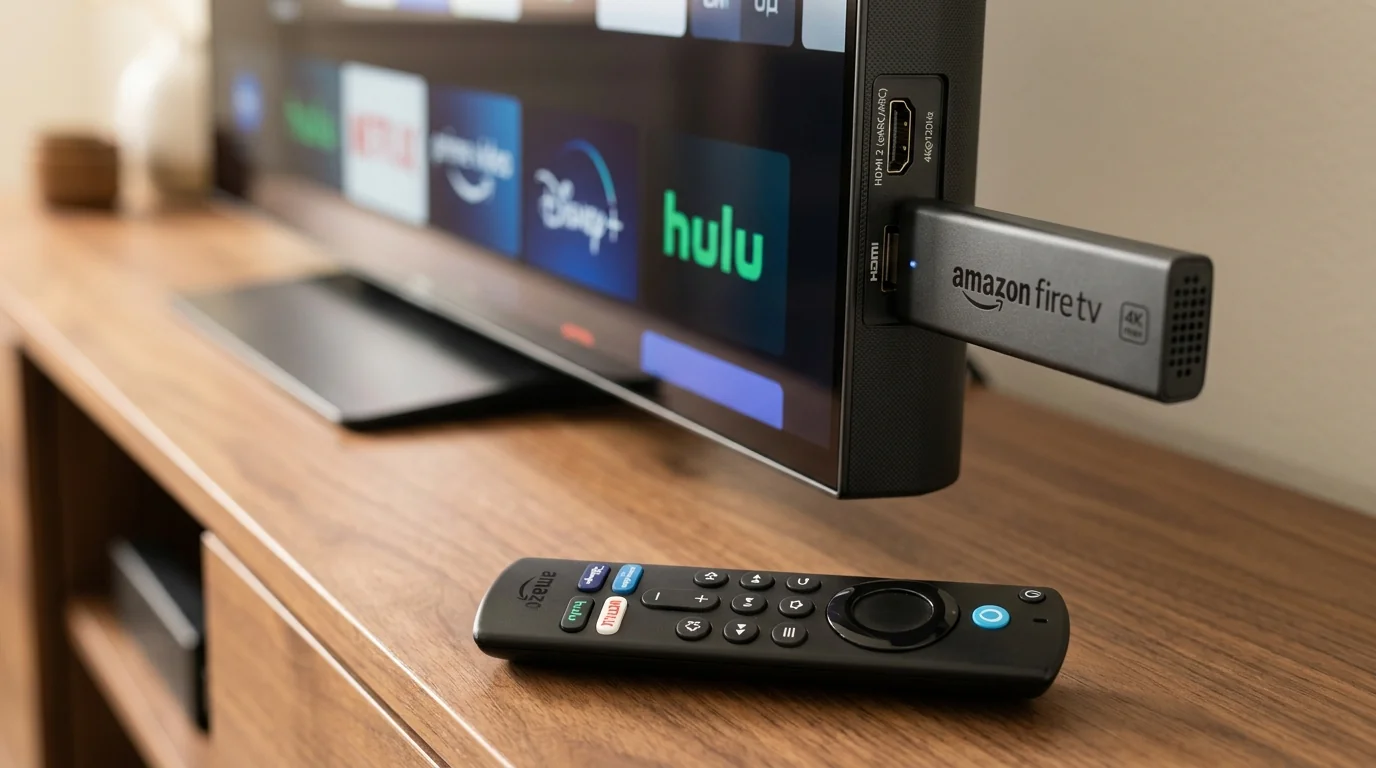
1. Why the Amazon Firestick Dominates UK IPTV
To understand why millions of British homes connect an Amazon Firestick to their primary television panels, consider the engineering advantages it provides over traditional smart TV operating systems like Samsung Tizen or LG webOS:
- Dedicated Processing Cores: While built-in smart TV processors are heavily throttled to manage television chassis heat, Amazon Fire TV Sticks feature dedicated MediaTek quad-core processing units clocked between 1.7 GHz and 2.0 GHz, coupled with independent graphics engines capable of rendering 4K 60fps streams without thermal throttling.
- Android-Based Architecture (Fire OS): Beneath Amazon's customized interface lies Fire OS, an operating system derived from Android. This grants Firestick owners access to the robust Android ecosystem of media players, hardware codecs, and networking utilities unavailable on proprietary closed-source television platforms.
- Portability & Mobility: The compact HDMI dongle form factor allows you to unplug your Firestick from your living room television and take your entire channel lineup, favorites, and on-demand watch history with you to a bedroom, holiday cottage, hotel, or student accommodation. Because VocoTV enforces an explicit No IP Lock policy, your streams operate seamlessly across any broadband connection or mobile 5G hotspot.
2. Firestick Model Comparison & Hardware Specs
Not all Amazon Firestick models are identical. Understanding the capabilities and constraints of your specific model ensures you set realistic expectations for resolutions, framerates, and multi-view multitasking:
| Firestick Model | Processor & RAM | Max Resolution & FPS | Wi-Fi Standard | IPTV Suitability Rating |
|---|---|---|---|---|
| Fire TV Stick Lite | 1.7 GHz Quad-Core / 1.0 GB RAM | 1080p Full HD @ 60 FPS | Wi-Fi 5 (802.11ac) | Good (Entry Level) |
| Fire TV Stick (3rd Gen HD) | 1.7 GHz Quad-Core / 1.0 GB RAM | 1080p Full HD @ 60 FPS | Wi-Fi 5 (802.11ac) | Good (Standard HD) |
| Fire TV Stick 4K (2nd Gen) | 1.7 GHz Quad-Core / 2.0 GB RAM | 4K Ultra HD @ 60 FPS | Wi-Fi 6 (802.11ax) | Excellent for 4K |
| Fire TV Stick 4K Max (2nd Gen) | 2.0 GHz Quad-Core / 2.0 GB RAM | 4K Ultra HD @ 60 FPS (AV1) | Wi-Fi 6E (Tri-Band) | Best Overall Value |
| Fire TV Cube (3rd Gen) | 2.2 GHz Octa-Core / 2.0 GB RAM | 4K Ultra HD @ 60 FPS | Wi-Fi 6E + Ethernet | Ultimate Powerhouse |
If you are purchasing a streaming stick today, we strongly advise investing in the Fire TV Stick 4K Max. The enhanced 2.0 GHz clock speed, 2GB of high-speed RAM, and 16GB of onboard storage allow rapid scrolling through massive 20,000+ channel directories and support 4-screen sports Multi-View without stutter.
3. Pre-Installation Checklist & Environment Prep
Before launching into the installation steps, verify these essential environmental prerequisites to eliminate 90% of downstream troubleshooting:
- Power Via the Wall Outlet: Do not power your Firestick by plugging its micro-USB or USB-C power lead into your television's service USB port. Television USB ports generally deliver only 0.5A (500mA), which is insufficient during high-bitrate 4K HEVC video decoding. Underpowered sticks frequently reboot unexpectedly or stutter during major sports matches. Always use the included Amazon 1.0A or 1.5A wall adapter.
- Use the HDMI Extender Cable: The flexible 4-inch HDMI extender included in the box is not an optional accessory; it positions the Firestick away from the electromagnetic interference emitted by the television's internal motherboard and power inverter, improving Wi-Fi signal reception by up to 40%.
- Verify Internet Connectivity: Navigate to Settings > Network and execute a speed check to ensure your Firestick receives at least 25 Mbps download speed with a signal status reported as "Very Good" or "Good."
4. Revealing Hidden Developer Options on Fire OS
On modern Firestick updates (Fire OS 7.2.8.5, Fire OS 8, and later), Amazon intentionally conceals the Developer Options menu to prevent casual users from sideloading third-party apps. Unlocking this menu requires a simple, one-time developer handshake:
Open My Fire TV Settings
From your Firestick Home screen, press the Right directional button on your remote to highlight the Settings (Gear icon) on the far right. Scroll down and click on My Fire TV.
Access the About Menu
Click on the top option labeled About. You will see information detailing your device name, internal storage, and Fire OS build version.
Execute the 7-Click Developer Handshake
Highlight your device name (e.g., Fire TV Stick 4K Max or Fire TV Stick). Press the Select (Center circular button) on your remote 7 times rapidly. A toast notification will appear at the bottom of the screen stating: "No need, you are already a developer."
Confirm Developer Options Is Visible
Press the Back button once on your remote. You will now observe a newly visible entry titled Developer Options positioned directly below About.
5. Installing and Authorizing the Downloader App
Because third-party IPTV media players are distributed as standalone Android Package Kits (APKs), you require a utility capable of fetching files from the web. The free Downloader app by AFTVnews is the gold standard across the streaming industry:
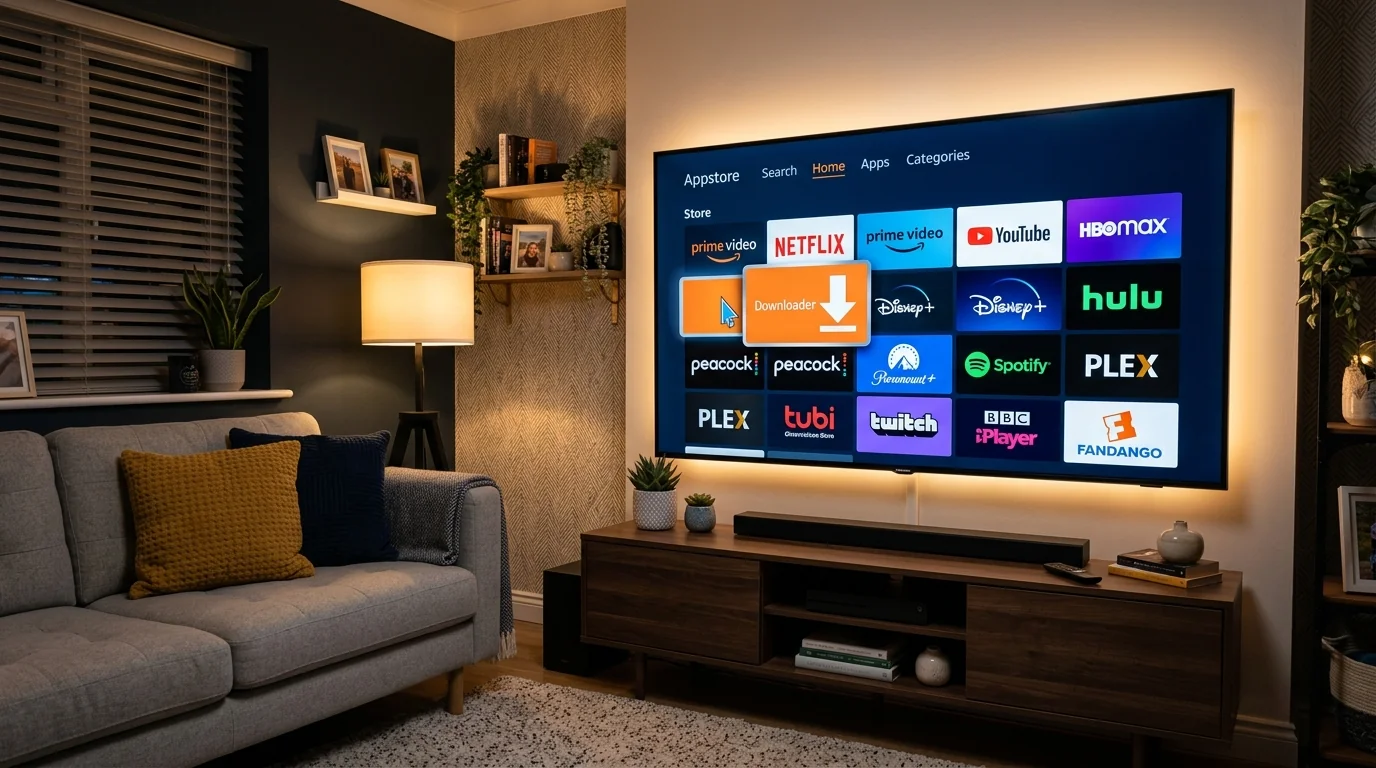
Search for Downloader in the Amazon Appstore
From the Firestick main menu, select the Find or Search magnifying glass icon. Type Downloader using your remote or Alexa voice command.
Download and Install Downloader
Locate the distinctive bright orange Downloader icon in the search results. Click Get or Download. The application will download and install within 15 seconds.
Grant Storage Permissions
Launch Downloader. Upon initial launch, the app prompts: "Allow Downloader to access photos, media, and files on your device?" Click Allow. If prompted with a quick tour notice, click OK.
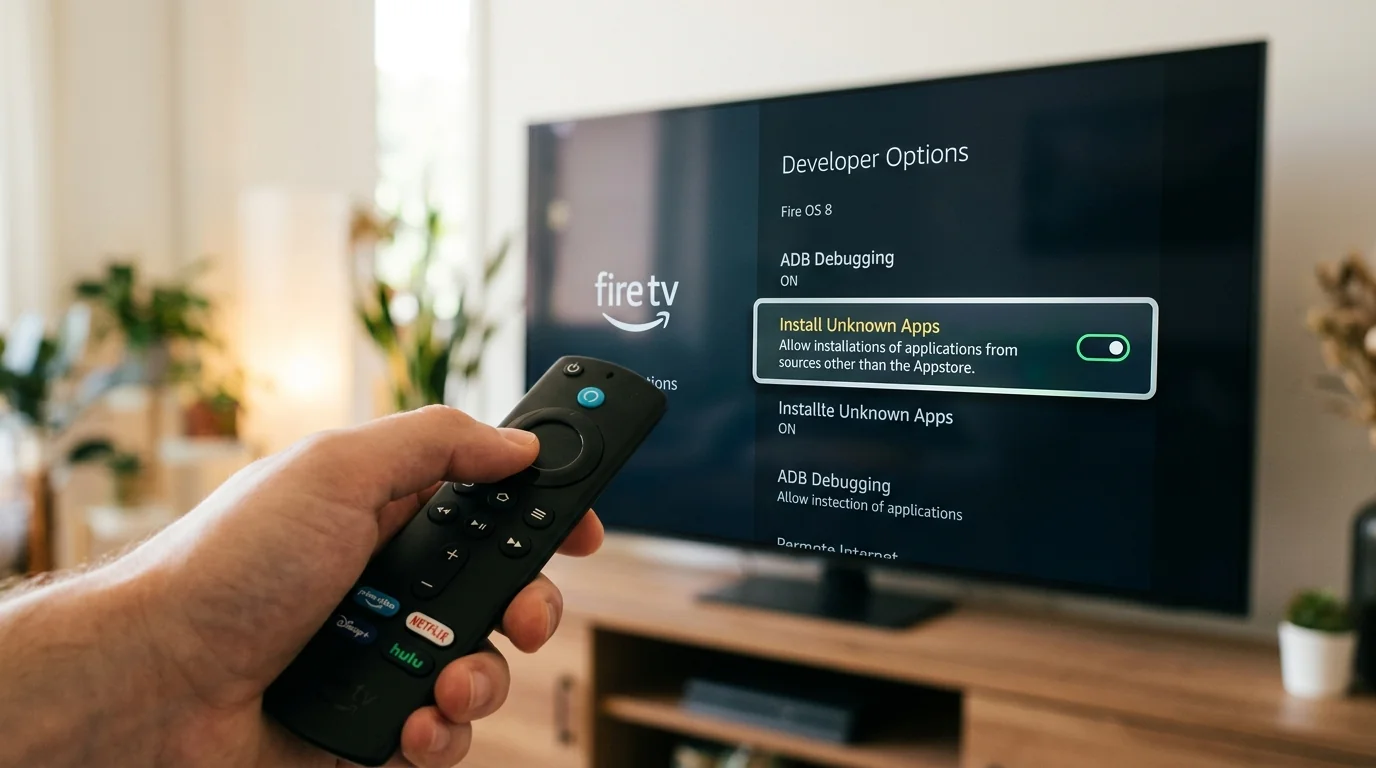
Authorize Downloader to Install Unknown Apps
Return to your Firestick Home screen. Navigate to Settings > My Fire TV > Developer Options > Install unknown apps (on older Fire OS versions, this is labeled Apps from Unknown Sources). Locate Downloader in the list and toggle it to ON.
6. Downloading & Installing IPTV Smarters Pro
IPTV Smarters Pro is the most popular, versatile IPTV player in the United Kingdom, offering an intuitive layout, complete EPG integration, multi-account switching, and full compatibility with VocoTV's Xtream Codes server architecture:
Enter the Numeric Quick-Download Code
Open the Downloader app and highlight the primary URL entry box. Using your remote, input the verified quick code for IPTV Smarters Pro: 250931 (or alternatively enter the direct APK URL: https://firesticktricks.com/smarters). Click Go.
Execute the APK Installation
Downloader will automatically redirect to the APK mirror and begin downloading the file (approximately 80MB). Once completed, an installation dialog appears automatically. Click Install in the bottom right corner.
Clean Up Temporary Installation Files
Once installation finishes, click Done (do not click Open immediately). Downloader will present a prompt asking if you wish to delete the downloaded APK file. Click Delete, then confirm Delete again. This immediately recovers 80MB of precious internal Firestick storage.
7. Sideloading TiviMate & Alternative Players
While IPTV Smarters Pro is ideal for most viewers, advanced users who desire a traditional satellite decoder interface often prefer TiviMate. Here is how to sideload TiviMate using Downloader:
- TiviMate Companion Quick Code: In Downloader, enter numeric code
272483or inputhttps://tivimate.comto fetch the latest official APK. - XCIPTV Player: A clean alternative with a dark tile-based UI, reachable via quick code
75187. - OTT Navigator: A highly customizable player with deep codec tuning options for enthusiasts, reachable via quick code
86940.
8. Connecting with Xtream Codes API
Now that your media player is installed, you are ready to link your active VocoTV subscription. We strictly recommend utilizing the Xtream Codes API method over manual M3U playlist URLs:
Launch IPTV Smarters Pro & Select TV Layout
Open IPTV Smarters Pro from your app library. When prompted to select your device interface, choose TV (not Mobile) and click Save. Accept the Terms of Use.
Select "Login with Xtream Codes API"
The application presents two primary login choices: Load Your Playlist or File/URL and Login with Xtream Codes API. Click on Login with Xtream Codes API.
Input Your VocoTV Credentials Carefully
Fill out the four input fields using the details provided in your welcome confirmation message:
- Any Name: Enter any friendly identifier, e.g.,
VocoTV UK - Username: Enter your unique username (case-sensitive)
- Password: Enter your unique account password (case-sensitive)
- Server URL / Port: Enter the exact portal URL provided (e.g.,
http://portal-domain.xyz:8080) without trailing slashes.
Synchronize Live Channels & On-Demand Video
Click Add User. The application will authenticate with VocoTV's edge server cluster and download channel categories, live guide metadata, and movie directories within 15 to 30 seconds.
9. Video Decoder Configuration: Hardware vs Software
One of the most consequential yet overlooked settings inside your IPTV application is the video decoder engine. Choosing the wrong decoder results in stuttering frame pacing and excessive CPU temperatures:
- Hardware (HW) Decoder (Recommended): Instructs the player to route incoming H.264, HEVC, and AV1 video packets directly to the Firestick's dedicated graphics silicon. This offloads video decompression from the central processor, ensuring 50fps and 60fps sports run with buttery smoothness while your device remains cool.
- Software (SW) Decoder: Forces the Firestick's CPU cores to decompress video frames mathematically. While useful as a fallback for rare legacy video containers, running high-bitrate 4K HEVC streams in Software mode will max out CPU utilization, resulting in dropped frames, audio desync, and eventual app crashes.
- How to Configure: In IPTV Smarters Pro, navigate to Settings (Gear icon) > Player Settings > set Native Player or Built-in Player (Hardware). In TiviMate, go to Settings > Playback > Video Decoder and ensure it is set to Hardware.
10. Buffer Size Calibration for Live Sports
Buffering occurs when a media player's internal memory buffer empties faster than incoming data packets arrive over your home network. By default, many players set the playback buffer to zero to provide instant channel zapping, but this leaves no tolerance for minor Wi-Fi jitter:
- Buffer Setting Calibration: Navigate to Player Settings inside your app and locate Buffer Size (or Stream Buffer).
- For High-Bitrate Live Sports (Sky Sports 4K / TNT Sports Ultimate): Set buffer size to Medium (2 to 3 seconds) or Large (4 to 5 seconds). This creates an unshakeable cushion in device RAM, absorbing momentary broadband micro-spikes without causing playback pauses.
- For General Channel Surfing: Setting buffer to Normal (1 to 2 seconds) balances instant zapping with reliable stability.
11. Electronic Programme Guide (EPG) & Catch-Up
An IPTV experience feels incomplete without an organized, synchronized Electronic Programme Guide. Here is how to configure your guide for British broadcasting:
- Initial EPG Sync: In IPTV Smarters Pro, click the Install EPG icon on the home dashboard. The app will pull full programme schedules for all UK and international bouquets.
- Automatic Refresh Schedule: Navigate to Settings > EPG Settings and toggle Auto Update EPG upon App Launch to ON. Set refresh frequency to Every 24 Hours to guarantee current schedule data.
- 7-Day Catch-Up Functionality: On supported channels (marked with a clock or restart icon), you can scroll backward through the TV guide timeline to stream any broadcast from the past seven days on demand. Simply highlight the past program and press Select.
12. Channel Organization & Managing Bouquets
With over 20,000 live channels available on VocoTV, navigating through dozens of international categories can be overwhelming if you primarily watch UK content. Streamlining your interface is simple:
- Creating a Custom Favorites List: When browsing the channel list, long-press the Select button on your remote over any channel (e.g., Sky Sports Premier League 4K, BBC One HD, TNT Sports 1). A yellow star will appear, instantly pinning the channel to your top-level Favorites bouquet.
- Hiding Unwanted International Bouquets: In IPTV Smarters Pro, go to Settings > Manage Categories. You can toggle off categories you do not watch (such as foreign language news or international sports), instantly decluttering your channel guide.
13. Multi-View Split-Screen Setup for 3PM Football
On an Amazon Fire TV Stick 4K Max, you can utilize the extraordinary Multi-View feature to watch up to four live matches simultaneously on a single television screen:
Launch Multi-Screen Mode
In IPTV Smarters Pro or TiviMate, press the Menu or Options button while watching any live sports channel and select Multi-Screen (or Multi-View).
Assign Your Channels to Each Grid Window
Choose your desired grid format (2 screens side-by-side, 3 screens, or a 4-window quad grid). Click the plus icon in each window to assign different 3:00 PM Saturday Premier League kickoffs.
Select Active Audio Track
Use your remote directional pad to toggle which window produces active stadium audio through your soundbar, with all four feeds remaining live and synchronized.
Running four live streams simultaneously within Multi-View consumes four concurrent connection slots. Ensure your VocoTV plan includes our 3-Device Family Pack or 5-Device Multi-Room VIP tier and that your home broadband delivers at least 50 Mbps download speed.
14. Expanding Firestick Storage with USB OTG for Local Recording
One inherent limitation of the Amazon Firestick is its constrained onboard flash memory (typically 8 GB total, with only 4.5 GB accessible after the Fire OS operating system is accounted for). If you plan to record live sports broadcasts, schedule series recordings, or buffer extended live television streams, device storage will rapidly deplete.
The solution is an inexpensive Micro-USB (or USB-C) OTG Y-Cable paired with a high-speed USB 3.0 flash drive (formatted to FAT32). Here is how to configure external recording storage:
- Hardware Connection: Connect the male end of the OTG Y-cable directly into your Firestick's power port. Connect your existing Amazon power lead to the female micro-USB port of the Y-cable, and insert a 64GB or 128GB USB flash drive into the standard USB port.
- Formatting Storage in Fire OS: Fire OS will display a notification: "USB Drive Detected". Select Format as External Storage.
- Configuring Recording Pathways: Inside TiviMate or IPTV Smarters Pro, navigate to Settings > Recording > Recording Folder. Select your connected USB drive storage directory. You can now schedule live recordings of late-night boxing cards or international sports fixtures while you sleep without consuming internal Firestick memory.
15. Router Channel Allocation: Setting Up Dedicated 5GHz Wi-Fi for Firestick
Even with ultrafast 500 Mbps broadband, streaming issues arise if your Firestick connects to an overcrowded 2.4 GHz Wi-Fi frequency. The 2.4 GHz band operates over only three non-overlapping channels (1, 6, and 11) and suffers severe interference from neighboring routers, baby monitors, microwave ovens, and Bluetooth devices.
To eliminate wireless packet jitter for pristine 50fps sports playback, apply these router settings:
- Split Wi-Fi Bands: Log into your home broadband router administrative panel (e.g.,
192.168.1.1or192.168.0.1) and separate your Wi-Fi SSID into two distinct networks: MyHome_2.4G and MyHome_5G. - Connect Firestick Exclusively to 5GHz: On your Firestick, forget the 2.4GHz network and connect strictly to the 5GHz SSID. The 5GHz band offers significantly wider channel bandwidth (80 MHz or 160 MHz) with minimal radio interference.
- Select Clear DFS Channels: In crowded apartment blocks, manually set your router's 5GHz wireless channel to Channel 36, 40, 44, or 48 to prevent automatic channel hopping during live match streaming.
16. Parental Controls & PIN-Locking Sensitive Bouquets
In households with young children, safeguarding access to adult programming or late-night combat sports is critical. Both IPTV Smarters Pro and TiviMate offer integrated parental control mechanisms:
- Setting a Master Security PIN: In IPTV Smarters Pro, go to Settings > Parental Control. Enter a secure 4-digit numeric code.
- Locking Specific Categories: You can select individual categories (such as Adult 18+, Horror, or International Feeds) and mark them as locked. Once enabled, these categories require PIN verification before channels or programme titles are visible.
- Hiding Locked Categories from View: Toggle Hide Locked Categories so restricted bouquets disappear entirely from the navigation menu unless unlocked by the account holder.
17. Firestick Routine Maintenance & Storage Management
Over months of intensive streaming, background applications and cached video fragments accumulate within Fire OS memory. Executing these two maintenance tasks once a month keeps your stick running like new:
- Clearing Application Cache: Go to Settings > Applications > Manage Installed Applications > select your IPTV app > click Clear Cache (do not click Clear Data, as this will reset your login credentials).
- Uninstalling Dormant Amazon Apps: Remove pre-installed shopping or gaming apps you do not utilize to ensure your Firestick retains at least 1.5 GB of free flash storage for smooth operating system paging.
- Performing a Hard Power Cycle: Unplug the Firestick power lead from the wall for 30 seconds once every few weeks to completely flush device RAM.
15. Troubleshooting Common Firestick IPTV Errors
If you encounter an unexpected hiccup, consult this quick reference troubleshooting guide:
| Symptom / Error Message | Probable Underlying Cause | Immediate Practical Remedy |
|---|---|---|
| "Invalid Details" on API Login | Typo in Username, Password, or Server URL | Re-enter credentials carefully; note case sensitivity and verify URL has no trailing space. |
| Black Screen with Audio Playing | Incompatible Hardware Video Decoder | Switch video decoder in player settings from Hardware to Software or VLC engine. |
| Audio Out of Sync with Video | Decoder clock drift on high-bitrate stream | Press pause for 2 seconds and resume, or adjust audio offset (+100ms / -100ms) in player. |
| App Suddenly Freezes / Crashes to Home | Low Firestick RAM / Cache Overload | Force Stop app, clear app cache in Firestick settings, and reboot device. |
| Channels Buffer During Saturday 3PM | ISP Traffic Shaping / Throttling | Connect via a reputable VPN (London server) running WireGuard protocol. |
18. Firestick Display & Sound Calibration: Match Original Framerate
Many viewers experience subtle visual judder not because the IPTV stream is faulty, but because their Firestick output is locked at 60Hz while the British broadcast is running at native 50Hz. This 50Hz-to-60Hz mismatch creates pull-down frame cadence judder during pan shots across football pitches.
To eliminate display judder completely:
- Match Original Frame Rate: Navigate to Firestick Settings > Display & Sounds > Display > Match Original Frame Rate. Toggle this setting to ON. Supported apps will now automatically switch your television refresh rate to 50Hz for UK broadcasts and 60Hz for US channels.
- Color Depth: Under Display settings, set Color Depth to Up to 10 to 12 bits if connected to an HDR10+ or Dolby Vision capable 4K panel.
- Surround Sound Passthrough: In Display & Sounds > Audio > Surround Sound, set output to Best Available (or PCM / Dolby Digital). When paired with an AV receiver or soundbar, this unlocks uncompressed multichannel audio during stadium broadcasts.
19. Sideloading & Configuring a Fast VPN on Firestick
If your UK broadband supplier enforces strict Deep Packet Inspection (DPI) during high-profile Premier League or PPV boxing events, deploying an encrypted VPN tunnel directly on your Firestick provides immediate peace of mind:
Download Your VPN App from the Amazon Appstore
Unlike third-party IPTV players, major VPN providers (such as ExpressVPN, Surfshark, NordVPN, and IPVanish) maintain official, certified applications hosted directly in the native Amazon Appstore. Search for your provider and click Get.
Select the WireGuard Protocol
Open your VPN application and navigate to Settings > Protocol. Select WireGuard (or Lightway in ExpressVPN). WireGuard uses modernized cryptography with lightweight packet headers, minimizing CPU overhead and delivering over 90% of your raw line speed.
Connect to the Nearest UK Server Node
Connect to a server located in London or Manchester. This keeps your physical round-trip ping time under 20ms while fully encrypting all video packets from ISP traffic management filters.
20. Thermal Management & Power Stability
High-framerate 4K sports streaming pushes your Firestick's silicon to maximum utilization. When a streaming stick exceeds 80°C (176°F), Fire OS automatically triggers thermal throttling, reducing CPU clock frequencies to protect the chip. This manifests on your TV as sudden dropped frames and stuttering video.
To eliminate thermal throttling:
- Always utilize the included HDMI extension cable to position the stick away from the heat radiated by your television panel.
- Avoid enclosing the Firestick inside tightly sealed media cabinets or directly behind heat-generating soundbars.
- Ensure adequate airflow around the dongle to maintain consistent 50fps rendering over hours of match viewing.
Test VocoTV on Your Firestick in 2 Minutes
Request instant trial credentials sent directly to your WhatsApp. Access 20,000+ live channels, 4K live sports, and 60,000+ movies on your Amazon Firestick completely risk-free.
Claim Firestick Free Trial ⚡️17. Frequently Asked Questions (FAQ)
Does sideloading IPTV players void my Amazon Firestick warranty?
No. Sideloading applications simply refers to installing software outside the primary Amazon Appstore using authorized developer options. It does not root the device, modify the operating system firmware, or invalidate your Amazon hardware warranty.
Which Firestick model is best for 4K sports?
The Amazon Fire TV Stick 4K Max (2nd Gen) is our highest recommendation. Its 2.0 GHz quad-core processor, 2GB RAM, Wi-Fi 6E connectivity, and native AV1/HEVC hardware decoders ensure buffer-free 50fps and 60fps sports playback.
Why does Downloader say "Developer Options is missing"?
On recent Fire OS updates, Amazon hides Developer Options by default. Go to Settings > My Fire TV > About, highlight your device name, and press the Select button 7 times rapidly until the developer notification appears.
Can I use TiviMate on my Firestick?
Yes. TiviMate can be sideloaded onto any Firestick model in under two minutes using Downloader with quick code 272483. To unlock TiviMate Premium features, activate your license via the TiviMate Companion app on an Android phone or BlueStacks emulator.
Do I need an Amazon account to set up IPTV on Firestick?
Yes, an active (free) Amazon account is required to complete initial Firestick setup and install the Downloader application from the official Appstore. No paid Amazon Prime subscription is needed.
What should I do if my Firestick runs out of storage?
Delete unnecessary applications you do not use and regularly clear the cache of your streaming player via Settings > Applications > Manage Installed Applications. Always delete downloaded APK files inside Downloader once installation completes.
Can I control VocoTV using my TV's original remote?
Yes, if your television supports HDMI-CEC (labeled as Anynet+, Bravia Sync, SimpLink, etc.), you can navigate your Firestick and IPTV Smarters Pro using your television's standard remote control.
How much internet speed does my Firestick need?
For smooth Full HD (1080p) streaming, a stable 15 Mbps connection is recommended. For 4K Ultra HD live sports broadcasts at 50/60fps, ensure your Firestick receives at least 25 to 35 Mbps download bandwidth.
Why does my Firestick reboot when I play 4K streams?
This is almost always caused by powering the Firestick via a television USB port rather than the included wall outlet adapter. High-bitrate 4K video decoding draws more power than a TV USB port can supply, triggering a sudden device restart.
Can I connect an Ethernet cable to my Firestick?
Yes. Amazon manufactures an official Ethernet Adapter for Fire TV, and reliable third-party micro-USB/USB-C gigabit adapters with integrated USB OTG ports are widely available, providing a hardwired network connection for rock-solid stability.
18. Conclusion & Getting Your Free Credentials
Transforming your Amazon Firestick into an elite home entertainment hub takes only a few minutes. By pairing high-performance hardware with VocoTV's buffer-free Anti-Freeze™ 9.3 network, you unlock instant access to over 20,000 live channels, uncompromised 50fps 4K sports, and 60,000+ movies without expensive monthly cable contracts.
Ready to experience the difference on your screen? Explore our VocoTV Subscription Plans or test your Firestick right now with a zero-commitment 24-Hour Free Trial.
Related Topics & Keywords
About Liam O'Connor
Hardware & App Integration Lead at VocoTV
Passionate streaming hardware specialist with extensive testing experience benchmarking IPTV CDNs, Firestick decoder profiles, and UK sports broadcast distribution protocols.
Have questions about this guide or setting up your device? Chat directly with a UK streaming advisor on WhatsApp.